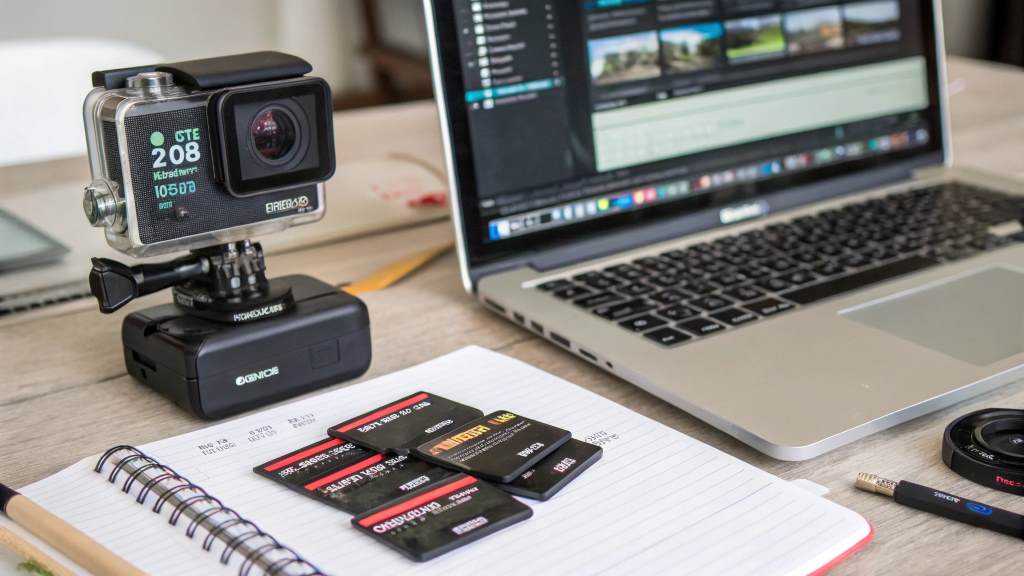
GoPro cameras are known for capturing breathtaking action shots, but many users face an annoying limitation—video length. Have you ever tried recording an extended session only to find your footage cut short after 20 minutes? Whether you’re recording sports, vlogs, or time-lapses, this limit can be frustrating. The good news? You can bypass it! With the right settings, accessories, and techniques, you can make your GoPro video length last well beyond 20 minutes. In this guide, we’ll explore why this limit exists and how to overcome it.
Understanding GoPro Recording Limits
Before jumping into solutions, it’s crucial to understand why GoPro cameras impose recording limitations.
Why Does GoPro Stop Recording After 20 Minutes?
Several factors contribute to this restriction:
- Overheating: GoPros are compact, and prolonged recording generates heat.
- File Size Limits: FAT32 and exFAT formats limit how large a single video file can be.
- Battery Drain: Recording at high resolutions quickly depletes battery life.
- SD Card Limitations: Slow or incompatible SD cards can interrupt recording.
By addressing these issues, you can extend your GoPro recording length. Also, you can learn how to create engaging animated videos.
How to Extend GoPro Video Length Beyond 20 Minutes
Now that you understand the reasons behind GoPro’s limitations, let’s explore how to increase recording time.

1. Change Video Resolution and Frame Rate
One of the simplest ways to extend your recording time is by adjusting your GoPro’s resolution and frame rate.
- Lower the Resolution: Recording at 4K consumes more storage and battery than 1080p.
- Reduce the Frame Rate: 60fps consumes twice the data and battery as 30fps.
- Use HEVC (H.265) Compression: This setting saves storage without compromising quality.
2. Use an External Power Source
GoPro batteries drain quickly, but you can power the camera externally:
- Use a Power Bank: Connect a USB power bank via the GoPro’s USB-C port.
- Plug Into a Wall Outlet: If you’re recording indoors, use a direct power source.
- Get a Battery BacPac: Some older GoPro models support battery extensions.
3. Use a High-Capacity, High-Speed SD Card
Not all SD cards are created equal. If your GoPro stops recording, your SD card might be too slow.
- Use UHS Speed Class 3 (U3) Cards: These support faster write speeds.
- Get High-Capacity Cards: Choose 128GB or 256GB cards to store longer recordings.
- Format the Card Regularly: This prevents corruption and ensures smooth recording.
4. Prevent Overheating
GoPros overheat, especially at high resolutions. Here’s how to keep them cool:
- Lower the Resolution and Bitrate.
- Use a Heat Sink or External Cooling. Attach a small heatsink or use an external fan.
- Keep the Camera in Open Air. Avoid placing it in an enclosed case.
- Turn Off Unnecessary Features. Disable Wi-Fi, GPS, and voice control.
5. Enable Loop Recording (For Continuous Footage)
Loop recording is ideal if you need extended recording but don’t need to save everything.
- Set Loop Mode to 5, 20, or 30 Minutes.
- GoPro will keep recording and overwrite old footage, preventing file size issues.
6. Use Time-Lapse Mode
If you’re capturing long events, try Time-Lapse Video Mode instead of regular video.
- Set Intervals to 5 or 10 Seconds. This drastically reduces file size.
- Use “TimeWarp” Mode. This optimizes battery life and prevents overheating.
7. Remove Unnecessary Settings
Some features drain the battery and storage:
- Disable Hypersmooth (Stabilization) If Not Needed.
- Turn Off GPS and Voice Control.
- Reduce LCD Brightness and Turn Off Auto Preview.
8. Keep Spare Batteries Handy
While external power is the best option, you can also swap batteries:
- Use GoPro Enduro Batteries. They last longer than standard batteries.
- Carry Multiple Batteries. Keep 3-4 fully charged batteries ready.
GoPro Models and Recording Limits
Each GoPro model has different limitations. Here’s a quick breakdown:
| GoPro Model | Max Continuous Recording | Best Way to Extend |
|---|---|---|
| GoPro Hero 12 | Unlimited (External Power) | Power bank & cooling |
| GoPro Hero 11 | 20-30 mins at 5.3K, longer at 1080p | Lower resolution, external power |
| GoPro Hero 10 | 15-25 mins (Overheating risk) | Use cooling and lower frame rate |
| GoPro Hero 9 | 25-30 mins | Power bank & SD card upgrade |
| GoPro Hero 8 | 20-30 mins | Lower bitrate & cooling |
| GoPro Hero 7 | 15-20 mins | Swap batteries frequently |
Common Issues and Fixes
Even with the best settings, you may run into problems. Here’s how to fix them.
Issue: GoPro Stops Recording Randomly
Fix: Use a high-speed SD card (UHS-3) and lower the resolution.
Issue: GoPro Overheats After 20 Minutes
Fix: Use an external fan, lower resolution, and avoid direct sunlight.
Issue: Battery Dies Too Fast
Fix: Use an external power source or swap batteries.
Issue: Videos Are Split Into 4GB Chunks
Fix: GoPro automatically splits files due to SD card formatting (FAT32). Use exFAT to avoid this.
FAQs
How long can a GoPro record continuously?
With external power and proper settings, a GoPro can record indefinitely. However, overheating may require breaks.
Can I use GoPro while charging?
Yes! Using a power bank or wall adapter allows for continuous recording.
Why does my GoPro split video files?
GoPros format SD cards in FAT32, which has a 4GB file limit. Switching to exFAT solves this.
What’s the best SD card for long recordings?
Use SanDisk Extreme Pro (UHS-3, V30) for reliable long recordings.
Can I remove the 20-minute limit with firmware updates?
No. The limit is due to heat management and storage constraints. However, firmware updates may optimize performance.
Final Thoughts
Now you know how to make your GoPro video length longer than 20 minutes! Whether using external power, optimizing settings, or preventing overheating, these tricks will help you record longer, uninterrupted footage.
If you’re serious about GoPro recording, investing in high-quality SD cards, power banks, and cooling solutions is a game-changer. Now, get out there and start capturing extended adventures!